
Help
How to run a league from the club console
In short
Staff log in to the club console with their work email and a password. The first time, the console emails a link to set the password. An owner creates a league from Leagues, New league: six quick questions, a name, then Create league. The A4 sign up poster, with its QR code and join code, is on the league's Overview under Posters.
Log in
- Go to the club console, or Club login on padeliga.co.uk.
- Type the email address your club uses for the console and press Continue.
- First time? Press Email me the link. Open the link in the email (it works once), set a password of at least 10 characters and press Save and continue.
- After that, type your password and press Log in. Forgotten it? Press Forgot your password? and we email you a link to set a new one.
If the console says you are not in a club yet, email hello@padeliga.co.uk to request access. To add a member of staff, email us their name, their work email and whether they are an owner or a manager.
Create a league
Starting a league is for an owner. A manager runs it from there.
- Go to Leagues and press New league.
- Answer the six questions. The console suggests a league in plain English, with every setting filled in.
- Press Make it now, or Change something to go through the steps with your answers picked. Or skip the questions and pick the format yourself.
- On Anything else?, add any extras: an entry fee and how to pay it, your WhatsApp group link, and Show on the club board with a level range and Casual or Competitive.
- On Check it over, give it a League name and press Create league.
The console shows the league is ready, with its join code, a Copy button, the Sign-up poster and Open the league. A club league has no admin PIN and nobody in it runs it: staff run it from the console.
Print the QR poster
- Open the league and go to its Overview.
- Under Posters, press Sign-up poster. It is A4, with a QR code and the join code in large letters, and prints straight from the browser.
- Put it where people wait: reception, the court doors, the bar.
The sign up poster lets anyone who walks past join, so take it down when the draw is made. Printable fixtures (or Printable bracket for a knockout) picks its own paper size, from A4 up to A1. Switch the public standings page on in the Season tab and a Standings poster appears too, which can stay up.
The draw, and every week after
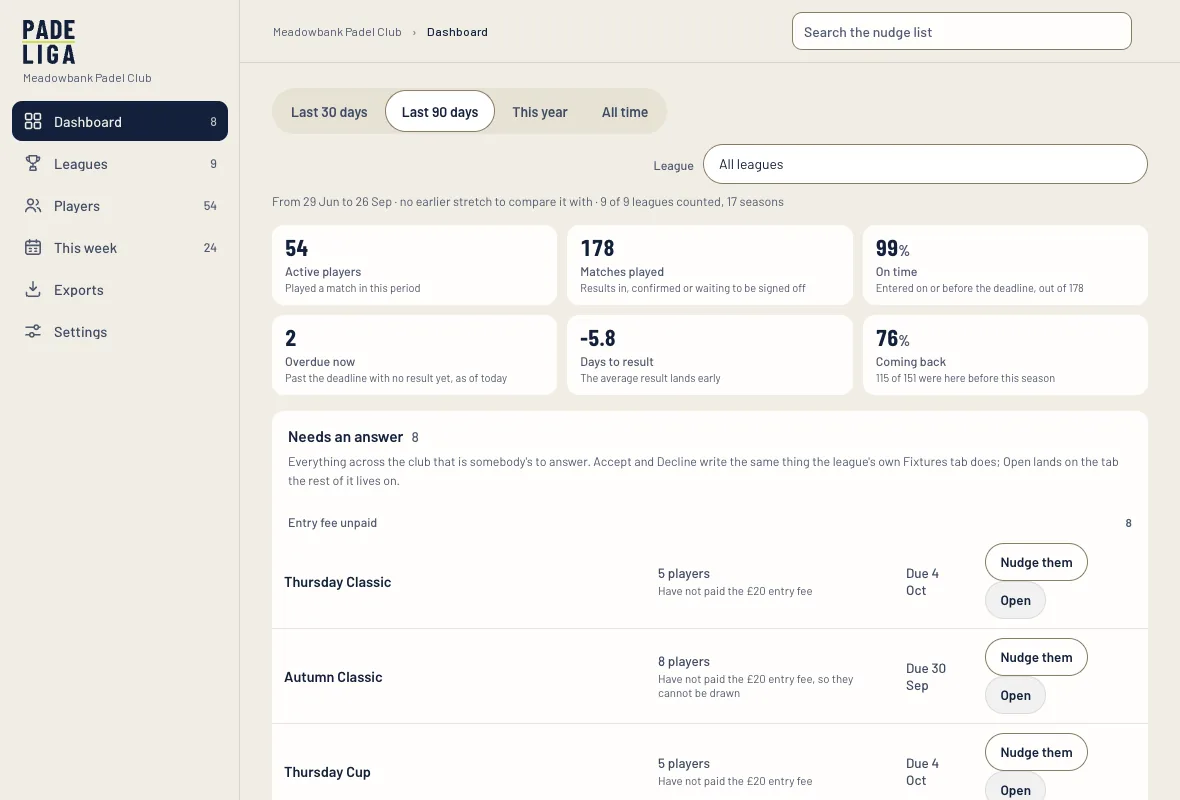
On the start date the fixtures are drawn from whoever has joined, and everyone is told their first match. Some formats wait for you to press Draw on the league's Fixtures tab. After that, members agree times, book courts the way they already do and confirm each other's scores. Staff answer what needs a person: see the Needs an answer list.
Still stuck?
Email hello@padeliga.co.uk with the league name and what you were trying to do. A person will reply. For anything about one league, whoever runs it can often help fastest.
Questions
Is the club console the same as the app?
No. The console is a separate website for venue staff, used on a laptop, tablet or phone. Players use the Padeliga app.
Does the console email a code to log in?
No. You log in with your email and a password. The console emails a link only to set your password, the first time or when you have forgotten it.
Who can create a league?
An owner. A manager runs leagues day to day: Needs an answer, deadlines, scores, walkovers, fees, PINs and announcements.
What does it cost a club?
Clubs get a free 90-day trial, and pricing is agreed at a review based on what actually happened. Members never pay.